
BuildBox container
BuildBox runs in a Docker container to isolate the build environment from the host system.
A dedicated container is automatically created and managed for each project. When you run bbx from a project directory, the container is started if needed, and the command is executed inside it. You do not need to manage the container lifecycle manually.
The container is named after the project directory, so each project has its own isolated build environment.
The following settings are shared between host user and container:
- SSH
- Git
- Vim
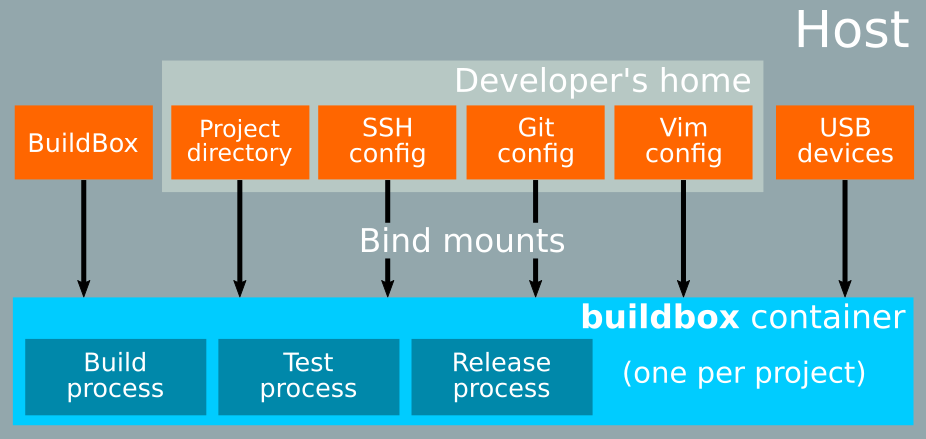
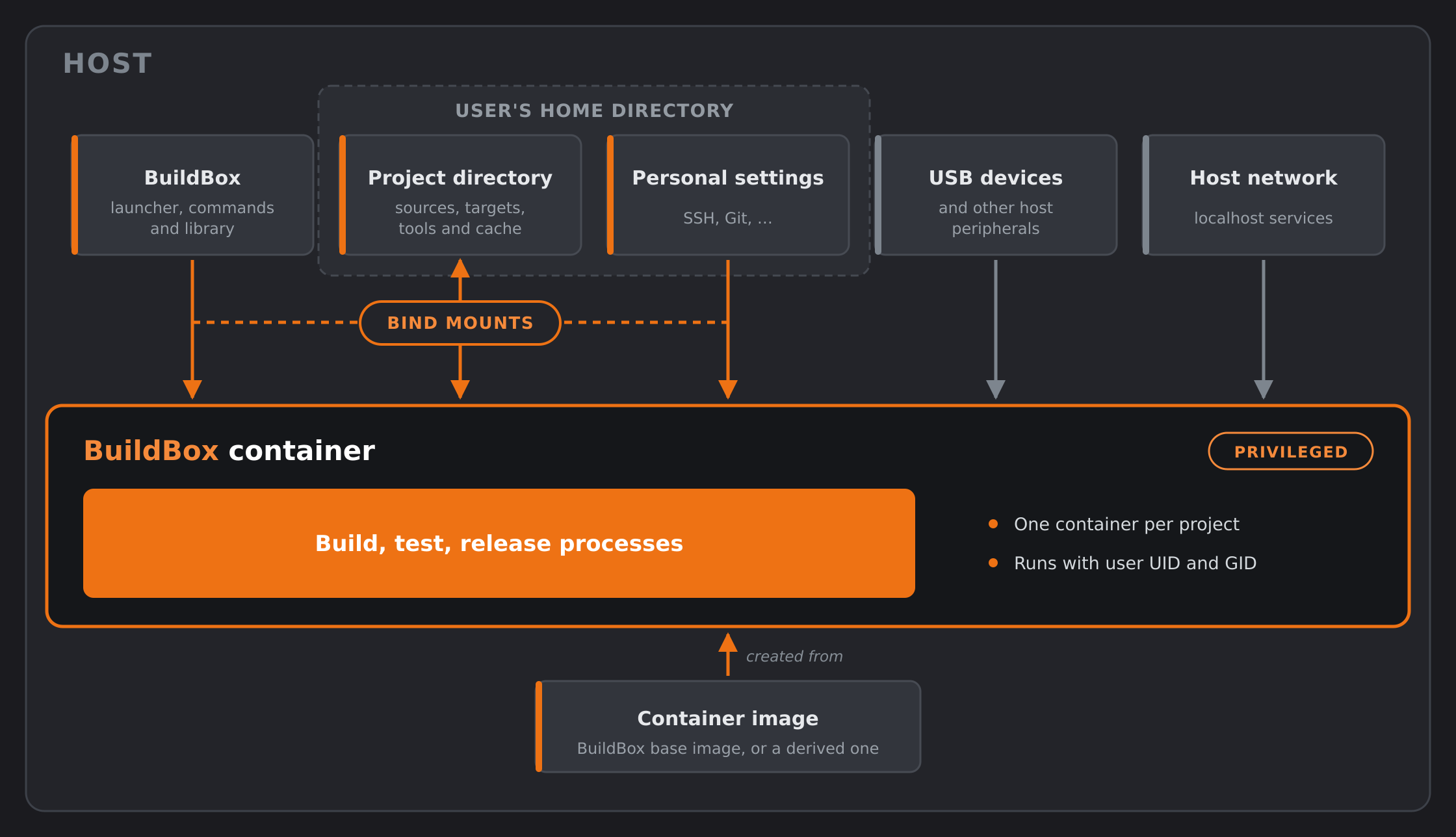
Your project directory, the BuildBox installation and those settings are bind mounted into the container. The container is privileged and shares the host network, so host peripherals such as USB probes are reachable from inside without any setup.
Manage container images
The BuildBox container image is published on Docker Hub at trustedobjects/buildbox.
List images
bbx image list [--all]Lists all locally available BuildBox images (buildbox and buildbox-* derived images). With --all, also queries Docker Hub and shows, for each matching image, its short description and all available tags.
Fetch an image
bbx image fetch [TAG]Pulls the image from Docker Hub and makes it available locally as buildbox:<TAG>. If TAG is omitted, latest is used.
TIP
After fetching a new image, run bbx instance upgrade to apply it to all existing project containers.
Manage projects containers
Although the container lifecycle is handled automatically, a set of commands is available to inspect and manage all running instances from the host.
List instances
bbx instance listLists all currently running BuildBox containers with their associated project directory and status (idle or busy).
Stop instances
bbx instance stop [--force] [NAME...]Stops all idle running instances. An instance is considered busy when a build or clone operation is in progress. Busy instances are skipped unless --force is passed, which stops them immediately regardless of their state.
One or more container names (as shown by bbx instance list) can be passed to restrict the operation to specific instances.
To stop the container for the current project only, use bbx stop from inside the project directory.
Upgrade instances
bbx instance upgrade [--image IMAGE] [NAME...]Removes and restarts all project containers that were created from an older image, so they immediately run with the new image. Containers already using the target image are left untouched and reported as up-to-date.
This command inspects both running and stopped containers. By default it upgrades to buildbox:latest. Pass --image to target a specific local image.
Optionally, one or more container names (as shown by bbx instance list) can be passed to restrict the upgrade to specific projects.
TIP
The typical upgrade sequence is:
bbx image fetch
bbx instance upgrade
Access project files from host
Your project directory is mounted into the container at the same absolute path. So a file at ~/workspace/my_project/src/my_package on the host is accessible at the same path from inside the container.
You can open your project sources in your favorite editor directly from the host, since the project directory is a regular directory in your home.
Shell access
bbx shell [CMD [ARGS...]]Without arguments, opens an interactive ZSH shell inside the container with a full TTY. All BuildBox commands are available without the bbx prefix:
bbx shell
# inside the container:
target set myplatform
build my_package
The environment (target, cross-compilation variables, tools) is refreshed before every command.
With arguments, runs the command directly inside the container without allocating a TTY, making it suitable for scripting and CI pipelines:
bbx shell make -C src/my_package check
bbx shell bash -c "find /usr/lib -name '*.so' | wc -l"
The container's BuildBox environment (BB_PROJECT_DIR, BB_TARGET, etc.) is available to the command. For shell constructs such as pipes or redirects, pass them to an explicit shell:
bbx shell bash -c "bb_get_package_revision \$(bb_find_matching_packages 0 my-pkg)"The exit code of CMD is forwarded to the caller.
Host applications
BuildBox can run few host applications, allowing to invoke them from its interactive shell (bbx shell).
Supported applications are:
code, which calls Visual Studio Code,meld, a file comparison tool,gitk, a Git repository browser,nautilus, Gnome file browser, by default running in current directory,evince, Gnome PDF reader,gedit, Gnome file editor.
X11 applications
GUI applications can be run from BuildBox seamlessly, through host's X11 server. As BuildBox container user ID and group ID are the same as your host's ones, there is nothing special to do to allow BuildBox to use host's X11 server.